RLP CRM in Claude: User Guide
The RLP CRM plugin lets Claude work with your CRM records. Claude can look up accounts, contacts, notes, and tasks, and it can create, update, or delete them for you. The plugin includes two things:
- The RLP CRM connector, which links Claude to the CRM.
- Built-in guidance, so Claude checks your access first, finds the right record IDs, follows long lists to the end, and asks you instead of guessing.
Claude only sees and changes what your own CRM login is allowed to, and every change is saved in the CRM under your name.
This guide is for Claude on the web at claude.ai and in the Claude desktop app.
Before you start
You need:
- A paid Claude plan: Pro, Max, Team, or Enterprise. Plugins aren't available on the Free plan.
- The Google account you use to sign in to RLP CRM.
Step 1: Remove any earlier RLP CRM setup
Start clean, even if you've never set up RLP CRM. An old plugin, connector, or skill can clash with the new one. In Claude, open Customize in the left sidebar, then check each of these:
- Plugins tab: if RLP CRM is listed, open it, click the ⋯ menu at the top right, and remove it.
- Connectors: if RLP CRM or rlp-crm is listed, open its ⋯ menu and choose Remove.
- Skills: if rlp-crm-connector is listed, open its ⋯ menu and remove it.
If Claude won't let you remove one of them, your company added it for you. Leave it and go on.
Step 2: Install the plugin
- Go to crm-mcp.rlpnetwork.com/download and click Download rlp-crm.zip. Leave the file zipped.
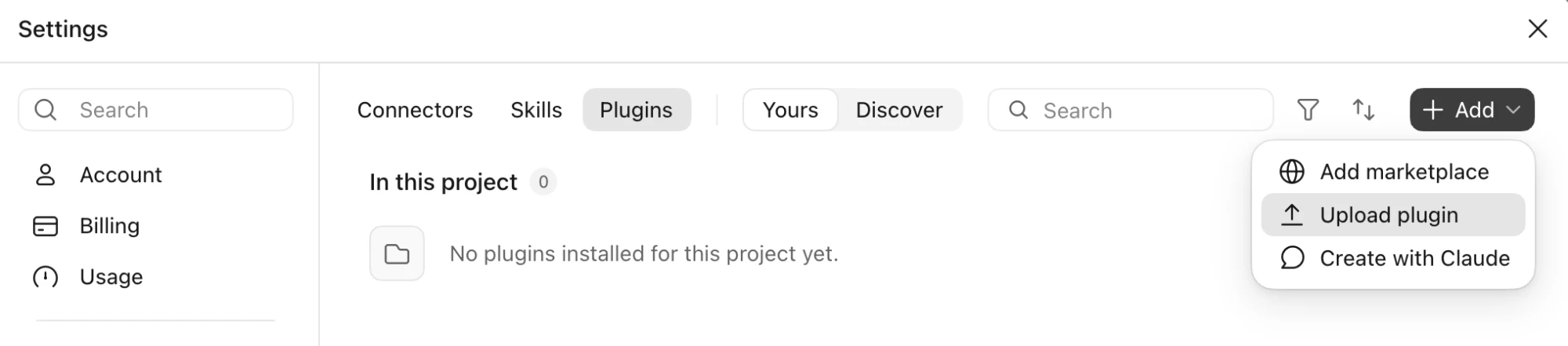
- In Claude, open Customize (in some versions of the desktop app, Settings) and go to the Plugins tab.
- Click Add, then Upload plugin, and choose
rlp-crm.zip.
Step 3: Connect and sign in
Installing the plugin doesn't connect it. Connect it once:
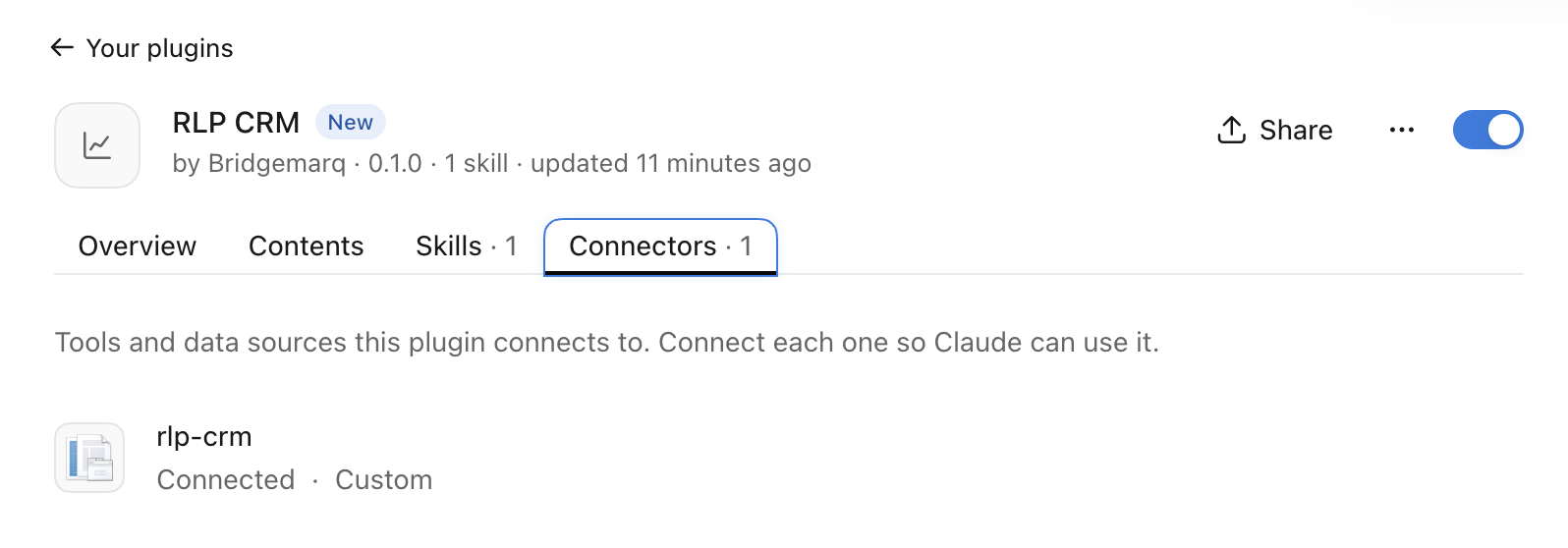
- In Customize → Plugins, open RLP CRM. Check that the switch at the top right is on.
- Go to the plugin's Connectors tab. It lists one connector, rlp-crm.
- Click Connect next to rlp-crm.
- A Google sign-in window opens. Choose the Google account you use for RLP CRM, and approve the access Google asks for.
- You return to Claude, and rlp-crm shows Connected.
The connector checks that your Google account belongs to an RLP CRM user. Claude never sees your Google password or Google sign-in tokens.
For security, the connection lasts up to seven days. After that, Claude asks you to sign in again. Click Connect and repeat the sign-in.
Step 4: Turn it on in your chat
- Start a new chat.
- Click the + button at the lower left of the message box (or type
/), point to Connectors, and switch rlp-crm on. - Ask your question, for example "Check my RLP CRM access." Claude checks that the RLP CRM tools are available, then answers.
To be sure Claude uses the CRM, say "use RLP CRM". If RLP CRM isn't connected or isn't switched on, Claude tells you which step to redo instead of answering.
When Claude asks to use an RLP CRM tool, read what it's about to do. Choose Allow always only for lookups you're comfortable letting it run without asking.
What you can ask for
Use everyday language, and include names, IDs, statuses, or dates when you have them.
Look things up
- "Check my CRM access and list the teams I belong to."
- "Show my open tasks due this week."
- "Find accounts named Northstar."
- "Find contacts named Morgan Lee and show their account details."
- "Show the notes I can see for account 123, two weeks at a time."
- "Count my notes for March 2026."
- "Find all accounts containing 'Harbor' and tell me if the list is complete."
- "Export these results as a CSV file."
Make changes
- "Create a task for account 123 titled 'Send renewal options', due 2026-12-01, assigned to CRM user 45."
- "Mark task 456 as Done."
- "Add these 20 contacts from the spreadsheet under account 123." (Paste or attach the rows.)
- "Add this email as a note on contact 4649, visible to level 2 and up."
- "Clear the due date on task 456."
- "Delete task 456."
Making changes safely
- Each change saves right away. There's no draft or undo step, so check the details Claude plans to use before you approve.
- Changes are made as you. If you couldn't make the change in the CRM yourself, it will be refused here too.
- Notes need a visibility choice. The CRM decides whether a note is shared by level (1–4) or by team. If you haven't said which, nothing is saved and Claude asks you.
- Deletes can be permanent. Deleting an account or contact may remove it for good. Deleted tasks can be restored by the CRM team.
- If Claude reports an "uncertain outcome", open the record in the CRM before trying again. The change may already have been saved.
Tips for better results
- Say whether you want only your own records or every record you can see.
- Narrow requests with a status, date range, account or contact name, or CRM ID.
- For large searches, ask how many results there are and whether the list is complete.
- When names are similar, check the CRM ID and linked account before asking for a change.
- If no results come back, the record may just be outside your access. It doesn't prove the record doesn't exist.
Getting a new version
When the RLP CRM team announces a new version, repeat Steps 1 to 4. Removing the old plugin first keeps your setup clean.
Troubleshooting
| What you see | What to try |
|---|---|
| You can't find Plugins under Customize | Plugins need a paid Claude plan. |
| Upload plugin rejects the file | Upload rlp-crm.zip exactly as downloaded. Don't unzip it or zip it again. |
| Claude says the RLP CRM connector isn't installed or connected | Connect it (Step 3), then switch it on for the chat (Step 4). If that doesn't help, start again from Step 1. |
| An error appears before the Google sign-in window | Start again from Step 1. If it still fails, contact the RLP CRM team. |
| Google sign-in works, but CRM access is denied | Sign in with the Google account that's linked to your CRM login. If that doesn't help, ask the RLP CRM team to check your CRM access. |
| Claude says you need to sign in, or the connector disconnects | Open RLP CRM in Customize → Plugins, go to its Connectors tab, click Connect next to rlp-crm, and sign in again. This is expected about once a week. |
| Lookups work but changes are refused | You may not have permission for that change in the CRM. Ask the RLP CRM team. |
| A search says it's incomplete | Ask Claude to continue, or narrow the search. Don't treat a partial list as complete. |
| Claude reports an error, but the change may have saved | Check the record in the CRM before trying again. |
For setup or access problems, contact the RLP CRM team. Never paste passwords or sign-in codes into a Claude chat.